Run on your own computer
With a one-time setup, your own PC, workstation or server can run pipelines for free: pick My computer in the Run dialog and a small background program on that machine, the worker, picks the run up and uses its GPU.
What you need
- Python 3.10 to 3.13. On Windows, install it from python.org (tick Add python.exe to PATH and the py launcher). On macOS, for example
brew install python@3.12; on Ubuntu,sudo apt install python3 python3-venv. - For training on a GPU: an NVIDIA GPU with a recent driver. Without one, runs use the CPU, which is fine for the CPU smoke test template and very slow for anything bigger.
- Disk space and a good connection for the first setup: PyTorch with CUDA alone is about 3 GB, and each run downloads its base model.
- An internet connection while runs are going. The worker connects out to Tuneline; you don't need to open any ports.
Set up a computer (one time)
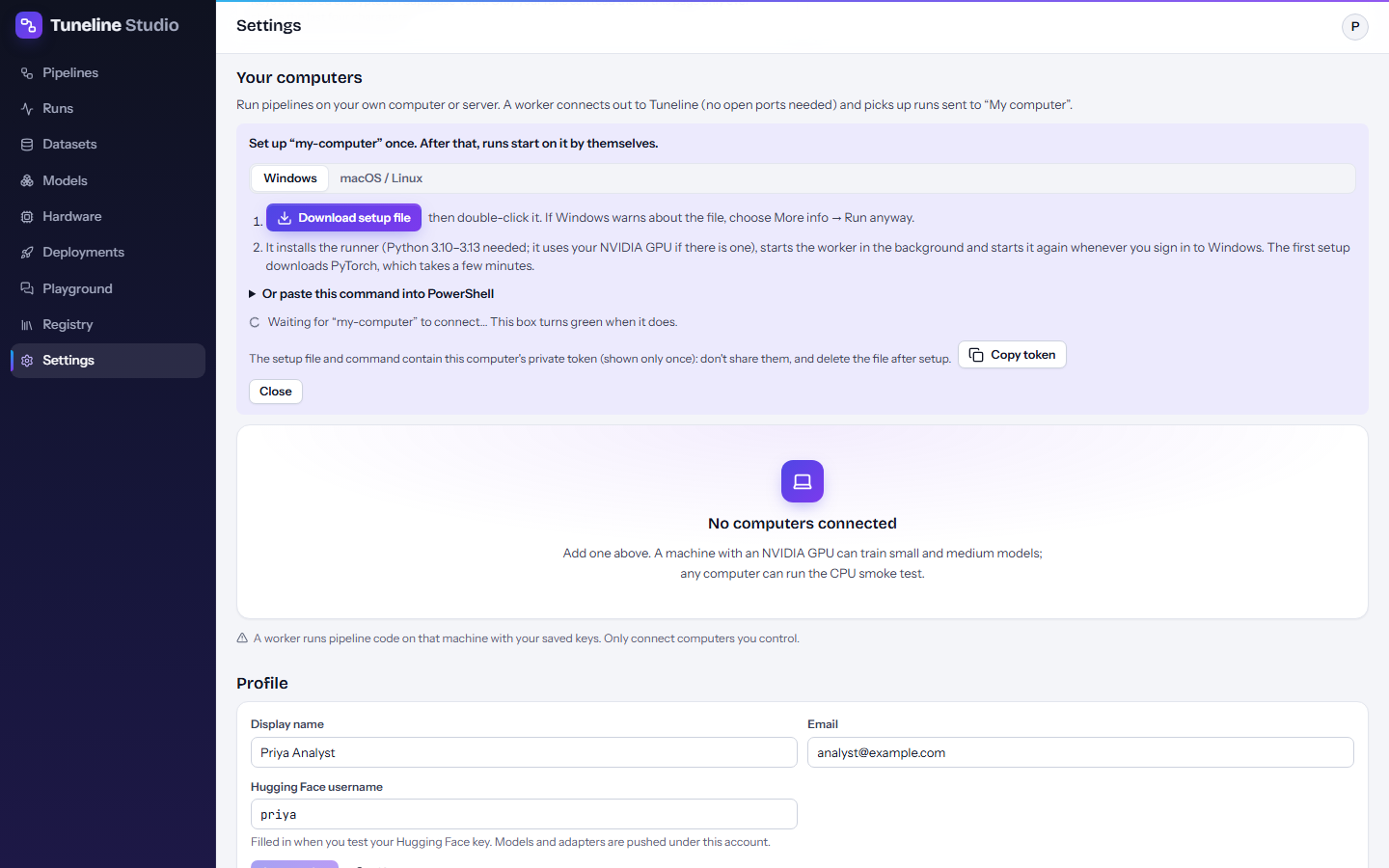
- In Tuneline Studio, open Settings → Your computers.
- Type a Name for this computer, for example
office-4090. - Click Add a computer. A setup box appears with instructions for Windows and macOS / Linux.
- Install the worker on the computer you want to use:
- Windows: click Download setup file, then double-click the downloaded file (
tuneline-setup-<name>.cmd). If Windows warns about the file, choose More info → Run anyway. Alternatively, open Or paste this command into PowerShell and paste the command into a PowerShell window. - macOS / Linux: copy the command and run it in a terminal. Keep that terminal open.
- Windows: click Download setup file, then double-click the downloaded file (
- Wait. The first setup downloads PyTorch, which takes a few minutes. The box in Settings says Waiting for “name” to connect… and turns green with “name” is online when the worker connects.
- Click Done.
The commands look like this (your own address and token are filled in; tlw_... stands for your computer's token):
# Windows PowerShell
$env:TUNELINE_WORKER_TOKEN='tlw_...'; irm https://tuneline-studio.vercel.app/runner/install.ps1 | iex
# macOS / Linux
curl -fsSL https://tuneline-studio.vercel.app/runner/install.sh | bash -s -- --worker-token tlw_...
Warning
The setup file and the command contain this computer's private token, which is shown only once. Don't share them, and delete the setup file once the computer is online. Copy token in the setup box copies the token alone.
What gets installed, and where
The installer puts everything in one folder in your home directory, .tuneline:
| What | Windows | macOS / Linux |
|---|---|---|
| Python environment with PyTorch and the Tuneline runner | %USERPROFILE%\.tuneline\venv |
~/.tuneline/venv |
| PyTorch build | CUDA 12.8 when an NVIDIA GPU is found, otherwise CPU | Linux: CUDA build with an NVIDIA GPU, otherwise CPU. macOS: the standard build (Apple silicon GPUs through MPS) |
| The worker | Runs hidden in the background | Runs in the terminal where you ran the command |
Working files of runs (downloaded models, intermediate data) go to ~/.cache/tuneline by default.
To check your setup at any time, run the runner's doctor command, which reports Python, PyTorch, CUDA, GPUs, packages and connectivity:
The background worker on Windows
On Windows, setup also makes the worker run by itself:
- It runs hidden in the background, so you can close the setup window.
- It starts again whenever you sign in to Windows, through a shortcut called Tuneline worker in your Startup folder. No administrator rights are needed.
- The token is kept in
%USERPROFILE%\.tuneline\worker-token, readable only by your Windows account.
Useful files in %USERPROFILE%\.tuneline:
| File | Use |
|---|---|
worker.log |
The worker's log. The previous session's log is kept as worker.log.previous, and errors go to worker-errors.log. |
stop-worker.ps1 |
Stops the worker. It starts again at your next sign-in unless you remove the Startup shortcut. |
start-worker.ps1 |
Starts the worker again (it does nothing if the worker is already running). |
Run the scripts from PowerShell, for example:
Two optional settings change how the installer sets up the worker. Set them in the same PowerShell window before pasting the install command:
| Setting | Effect |
|---|---|
$env:TUNELINE_NO_AUTOSTART='1' |
Don't create the Startup shortcut; the worker won't start when you sign in. |
$env:TUNELINE_FOREGROUND='1' |
Run the worker in the PowerShell window instead of in the background. Leave the window open; stop it with Ctrl+C. |
Tip
On Windows, QLoRA depends on bitsandbytes, which is built for Linux first. The most reliable setup for QLoRA is WSL2 with Ubuntu, using the Linux command inside WSL.
The worker on macOS and Linux
The worker runs in the terminal where you ran the install command. Leave that terminal open; stop the worker with Ctrl+C. To start it again later, run:
To keep it running without a terminal, run that command under your system's service manager.
On macOS, bitsandbytes (and so QLoRA) isn't available; training uses LoRA instead.
What fits on your GPU
Use the Hardware page for your exact model and settings. As a guide, for the Sanctions alert triage template:
| Base model | QLoRA | LoRA |
|---|---|---|
| Qwen2.5-1.5B-Instruct | about 3.8 GB | about 5.8 GB |
| Qwen3-4B-Instruct-2507 | about 5.8 GB (6.7 GB with headroom) | more; check the Hardware page |
So a GPU with 8 GB handles a 1.5B model with either QLoRA or LoRA, and a 4B model with QLoRA. The Models page groups 2B to 9B models as fitting one 24 GB GPU, such as an RTX 3090 or 4090.
The runner adapts to the machine and says so in the run log:
- No NVIDIA GPU: QLoRA needs one, so training switches to LoRA, and on a PC without a GPU it runs on the CPU. That is fine for the CPU smoke test and very slow for real models.
- bitsandbytes not available (common natively on Windows, and always on macOS): training uses LoRA instead of QLoRA. LoRA needs more memory, so a model that just fits with QLoRA may not fit any more. Pick a smaller model, or use WSL2 on Windows.
Run a pipeline on your computer
- In the pipeline editor, click Run.
- Under Where to run, pick My computer. The card shows how many of your computers are online.
- If you have several computers, choose one in the Computer field, or leave it on Any of my computers.
- Set the limits and click Start run.
The dialog then shows Run #N is ready to start. When the computer is online it says “name” is online and starts this run within 30 seconds. Nothing else to do: progress appears here. The editor's live banner shows Waiting for your computer “name” to pick it up (within 30 seconds)…, then each step as it runs.
If you don't want to install the background worker, Or start just this run from a terminal gives a one-off command (macOS / Linux, Windows PowerShell or pip) that runs only this run on any machine with Python 3.10 or newer.
Computer statuses and messages
In Settings → Your computers, each computer shows its name (click it to rename), its status, when it was last seen, and what it reported: GPUs with their memory, host name, operating system, RAM and runner version. A computer without a GPU shows No GPU found: runs use the CPU.
| Status | Meaning |
|---|---|
| Online | The worker has checked in within the last 90 seconds (it checks in every 30 seconds). |
| Offline | The worker connected before but isn't checking in now: the computer is off or asleep, or the worker stopped. |
| never connected | The computer was added, but its setup hasn't been run (or hasn't finished). |
Messages you may see in the Run dialog, the run page or the live banner:
| Message | What to do |
|---|---|
| No computer connected yet / No computer is connected. Add one in Settings → Your computers | You haven't set up a computer. Follow the setup. |
| … isn't connected. Finish its one-time setup in Settings → Your computers | The run is waiting, and no computer that could take it is online. Turn the computer on, or finish its setup. |
| “name” is offline. Turn that computer on and sign in: its worker starts by itself and picks this run up. | The computer was set up before. Switch it on and sign in (Windows), or start the worker again (macOS / Linux). |
| “name” hasn't been set up yet. | Run its setup file or command. If you no longer have them, remove the computer in Settings and add it again. |
| Your computers are offline or not set up yet, so the run will wait in the queue until one connects. | You can still start the run; it starts as soon as a computer connects. |
A queued run waits for up to 14 days. A run whose computer stops reporting for 20 minutes (for example because it went to sleep) is marked failed; run it again when the computer is back.
Update the runner
Run the setup file or the install command again. It reuses the Python environment and replaces the runner with the version that matches the app. Running it again is also the quickest fix when a worker shows offline because its window was closed or the computer slept.
Remove a computer
In Settings → Your computers, click the bin icon next to the computer, then Remove computer. Its token stops working immediately, and runs queued for it go to another of your computers.
Removing a computer doesn't uninstall anything from it. To clean up on Windows, run stop-worker.ps1, delete the Tuneline worker shortcut from your Startup folder, then delete the %USERPROFILE%\.tuneline folder. On macOS and Linux, stop the worker and delete ~/.tuneline.
Security
Warning
A worker runs pipeline code on that machine with your saved keys. Only connect computers you control.
- When your computer runs a pipeline, it receives the saved keys that pipeline needs (for example your Hugging Face token) and runs the pipeline's steps, including code from the models it downloads if you turn on Trust remote code.
- The computer's token (
tlw_...) lets that machine pick up your runs. Treat it like a password: don't share the setup file, command or token, and delete the setup file after setup. - If a token may have leaked, remove the computer in Settings (the token stops working) and add it again.
- Each run gets its own short-lived run token; the worker passes it to the run privately, not on the command line.
Tips
- Laptops: plug in the power and stop the computer from sleeping during long runs. Sleep stops the worker, and a run that goes quiet for 20 minutes is marked failed.
- Close other GPU-hungry programs (games, other training jobs) before a run, so the model has the GPU memory the estimate assumes.
- Start with the CPU smoke test template to check the whole path (worker, live logs, metrics, evaluation) in a few minutes before a real training run.
- For 8 GB GPUs, start with a 1.5B model; move to 4B with QLoRA once that works.