Running pipelines
The Run dialog is where you choose where a pipeline runs, on which GPU, and with which limits, then start it with Start run.
Open the Run dialog
- Open the pipeline in the editor.
- Check the right panel (click an empty part of the canvas): Checks should show no problems, and API keys this pipeline uses should show the keys it needs as saved.
- Click Run in the top bar.
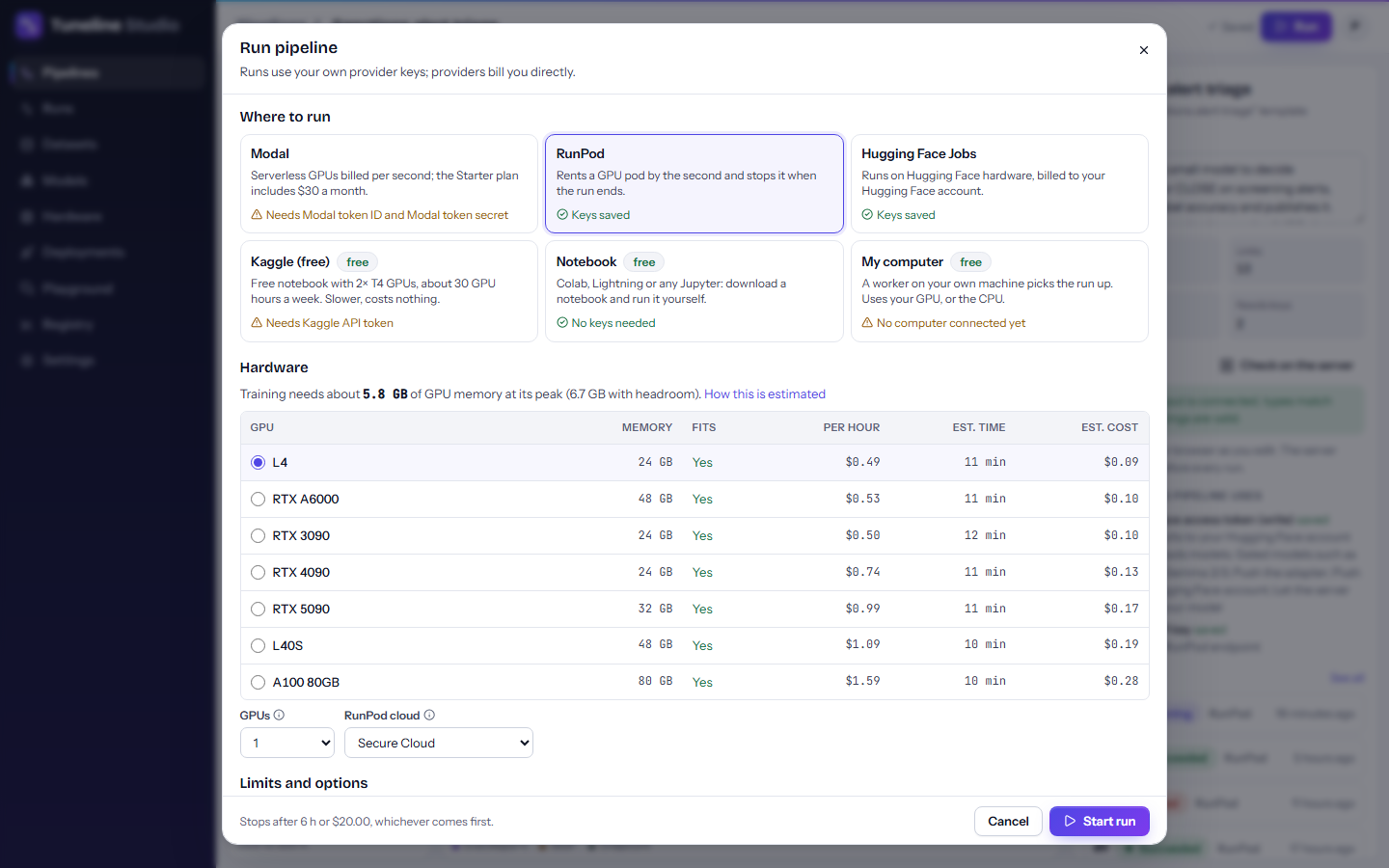
The dialog, titled Run pipeline, has three parts: Where to run, Hardware and Limits and options. Runs use your own provider keys, and providers bill you directly.
If the pipeline still has problems, the dialog lists them under Fix these problems first and Start run stays disabled.
Where to run
Each card shows a short description and whether you are ready to use it: Keys saved, No keys needed, Needs … (the missing key), or for My computer, how many of your computers are online. The dialog preselects the first target you're ready for (Modal, RunPod, Hugging Face Jobs, Kaggle, then My computer if one is online), and falls back to Notebook.
| Target | Cost | Keys needed | GPU |
|---|---|---|---|
| Modal | Paid per second; the Starter plan includes $30 of compute a month | Modal token ID and token secret | You choose, 1–8 GPUs |
| RunPod | Paid per second | RunPod API key | You choose, 1–8 GPUs; Secure or Community Cloud |
| Hugging Face Jobs | Paid, billed to your Hugging Face account | Hugging Face token | You choose |
| Kaggle (free) | Free | Kaggle API token (or a legacy username and key) | Fixed: 2× T4, 16 GB each |
| Notebook (free) | Free tiers available | None | Whatever the notebook runtime has |
| My computer (free) | Free | None; a one-time setup of your computer | Your own GPU, or the CPU |
Keys are saved in Settings → API keys. If the selected target needs a key you haven't saved, the dialog says Add your … in Settings to run on …, with a link.
Modal
Modal runs your pipeline on serverless GPUs in your own Modal workspace and bills you per second.
- Keys: a Modal token ID and token secret (create them at modal.com → Settings → API Tokens).
- GPUs: from T4 and L4 up to A100, H100, H200 and B200, depending on what Modal offers. You can ask for 1, 2, 4 or 8 GPUs of the same type.
- Cost: pay per second of GPU time. The Starter plan includes $30 of compute every month, which covers many small fine-tunes.
- Good to know: the very first Modal launch builds the job image and can take several minutes. A Modal job can run for at most 24 hours.
- Choose it when you want a reliable paid GPU with no idle cost, or want to use the monthly credit.
RunPod
RunPod rents a GPU machine (a pod) by the second, runs your pipeline on it and removes it when the run ends.
- Keys: a RunPod API key with read and write access (runpod.io → Settings → API Keys).
- GPUs: consumer and data-centre GPUs (for example RTX 3090, RTX 4090, L4, L40S, A100 80GB, H100). You can ask for 1, 2, 4 or 8 GPUs.
- RunPod cloud: Secure Cloud runs in data centres; Community Cloud (cheaper) uses hardware from vetted hosts. If a GPU type isn't available, try the other cloud or another GPU.
- Cost: pay per second; you need credit on your RunPod account. There is no free tier.
- Limits: RunPod runs need at least one GPU step. For a CPU-only pipeline, pick another target.
- Choose it when you want low prices and a wide choice of GPUs.
Hugging Face Jobs
Hugging Face Jobs runs the pipeline on Hugging Face hardware, billed to your Hugging Face account.
- Keys: your Hugging Face token, which most pipelines need anyway.
- GPUs: T4, L4, A10G, L40S, A100 80GB, RTX PRO 6000 and H200 (single and multi-GPU options, as Hugging Face offers them).
- Cost: billed by Hugging Face. Jobs need a positive credit balance on your account; the monthly credits of a PRO subscription count. At the time of writing an L4 cost about $0.80 an hour.
- Choose it when you already have Hugging Face credit and want everything in one account.
Kaggle (free)
Kaggle runs the pipeline as a private notebook on two free T4 GPUs.
- Keys: a Kaggle API token (kaggle.com → Settings → API → Create New Token), or a legacy
kaggle.jsonusername and key. - Account: GPUs and internet on Kaggle need a phone-verified account (kaggle.com → Settings → Phone verification).
- GPU: always 2× T4 with 16 GB each. The dialog tells you whether the pipeline fits; if not, try QLoRA or a smaller model.
- Limits: about 30 GPU hours a week (Kaggle's quota varies) and at most 12 hours per session. Kaggle may queue the job before it starts.
- Cost: free. It is slower than modern paid GPUs.
- Choose it when you want to train a model that fits in 16 GB (for example a 1.5B or 4B model with QLoRA) at no cost.
Notebook (free)
You download a notebook for this run and run it yourself in Google Colab, Lightning AI or any Jupyter server.
- Keys: none for the target itself. The notebook carries a private run token, so the run can report back.
- GPU: whatever runtime you choose in the notebook. Choose a GPU runtime if the pipeline trains a model.
- Cost: free tiers are available (Colab's free tier offers a T4 for up to 12 hours per session, with idle timeouts); paid tiers are billed by that service.
- Choose it when you want a free GPU without saving any provider keys, or to try the CPU smoke test.
My computer (free)
A worker on your own machine picks the run up and uses its GPU, or the CPU if there is none. This needs a one-time setup under Settings → Your computers; after that, runs start by themselves. When you have several computers, a Computer field lets you pick one, or leave it on Any of my computers.
Everything about this target is on its own page: Run on your own computer.
Hardware
This section estimates the pipeline's GPU memory, and for paid targets, time and cost per GPU. For how the numbers are calculated, see Hardware and costs.
- Modal, RunPod and Hugging Face Jobs show a table of GPUs with Memory, Fits, Per hour, Est. time and Est. cost. The best GPU that fits is preselected; click another row to change it.
- GPUs (Modal and RunPod): run on 1, 2, 4 or 8 GPUs of the same type. More GPUs split the work; the estimate in the table is for the count shown in each row.
- RunPod cloud (RunPod only): Secure Cloud or Community Cloud (cheaper).
- Kaggle shows the fixed GPU and whether the pipeline fits.
- Notebook and My computer use the GPU of the machine that runs them; without one, training steps run slowly on the CPU.
A pipeline without GPU steps (for example one that only formats data) runs on CPU wherever you send it.
Limits and options
| Option | What it does |
|---|---|
| Stop after (hours) | The run stops itself after this many hours. Between 0.1 and 72; default 6. |
| Stop at cost (USD) | Paid targets only. The run stops itself when the estimated cost (hours × the GPU's price per hour) reaches this amount. Default $20. |
| Run name (optional) | A label to recognise the run later, for example lr 1e-4, 2 epochs. |
| Reuse cached steps | On by default. Steps whose settings and inputs haven't changed reuse their earlier results. Turn it off to run every step again. See caching. |
For paid targets, the bottom of the dialog summarises the limits, for example Stops after 6 h or $20.00, whichever comes first. A run stopped by a limit ends as Cancelled, with the reason. Providers can have their own limits too (Kaggle stops sessions after 12 hours, Modal jobs after 24).
"This pipeline needs … Add them in Settings"
Each step declares which API keys it needs, depending on its settings. If a key the pipeline needs isn't saved, the dialog shows, for example:
This pipeline needs RunPod API key (Create the RunPod endpoint). Add it in Settings.
and Start run stays disabled. Some common causes:
| Step | Needs | When |
|---|---|---|
| Almost every step that reads or writes models | Hugging Face token (write) | Pushing adapters, merged models or GGUF files, registered models, gated models, the step cache |
| Deploy endpoint | Hugging Face token | Always: the server downloads your model from Hugging Face |
| Deploy endpoint | RunPod API key | When Where to serve is RunPod Serverless (the default) |
| Deploy endpoint | Modal token ID and secret | When Where to serve is Modal |
| Evaluate on test set | Hugging Face token, or an OpenAI-compatible key and base URL | When the LLM judge metric is on, depending on Judge API |
| Generate synthetic data | Hugging Face token, or an OpenAI-compatible key and base URL | Depending on Generator API |
| Training steps | Weights & Biases key | When Also log to is Weights & Biases |
You have two ways out:
- Add the key in Settings → API keys, or
- change or delete the step that needs it. For example, the Sanctions alert triage template ends with a Deploy endpoint step that serves on RunPod. If you don't want to deploy yet, select that step and click Delete node; or set Where to serve to Hugging Face Inference Endpoints, which uses your Hugging Face token.
The server checks the keys again when you start the run, and replies with Add these API keys in Settings → API keys before running: … if something is missing.
Start the run
Click Start run. The pipeline is saved first, then checked and compiled on the server, and the run gets its number. What happens next depends on the target.
Modal, RunPod, Hugging Face Jobs and Kaggle
Tuneline Studio launches the job for you with your keys. The dialog closes, a message says Run #N started, and the run page opens. The run shows Launching until the job is up (a few minutes is normal; Kaggle can queue longer), then Running, and the steps light up as they work.
If the provider refuses the job (for example a rejected key, no credit, or no GPU of that type available), the dialog shows The run didn't start with the provider's reason and how to fix it. The run is then recorded as failed with that reason; Open run #N takes you to it.
Notebook
The dialog changes to Run #N is ready to start:
- Click Download notebook.
- Open it in Google Colab (File → Upload notebook), Lightning AI or any Jupyter server.
- Choose a GPU runtime if the pipeline trains a model, then run all cells.
- Keep the Tuneline tab open: the run page updates live while the notebook runs.
Under Or run it from a terminal you get the same run as a one-line command for macOS / Linux, Windows (PowerShell) or pip, to run on any machine with Python.
Warning
The notebook and the command contain a private run token: don't share them. Each new download or command for the same run adds a fresh token; earlier ones keep working until 2 hours after the run ends.
My computer
The dialog changes to Run #N is ready to start and tells you whether your computer will pick the run up. If it is online, it says “name” is online and starts this run within 30 seconds, and there is nothing else to do. If not, it explains how to fix it, and Or start just this run from a terminal gives a one-off command. See Run on your own computer.
In every case, the pipeline editor shows the run live in a banner above the canvas while it runs. See Watch a run on the canvas and Monitoring runs.
Cancel a run
- Open the run page (from the banner's Open run, the Runs tab or the Runs page).
- Click Cancel.
- Confirm with Cancel run (or Keep running to change your mind).
Training stops at the next step. For Modal, RunPod and Hugging Face Jobs the job is also stopped at the provider (a RunPod pod is removed). Kaggle has no way to stop a session from outside, so a Kaggle run (like a notebook or My computer run) stops at the runner's next check-in. Steps that already finished stay cached for the next run.
Run again
When a run has ended, the run page shows Run again. It starts a new run with the same graph the run used, on the same target with the same limits and cache setting. Thanks to caching, steps that succeeded before are reused.
Note
Run again repeats the run exactly as it was. To run your latest edits, use Run in the pipeline editor instead.
Runs that stop by themselves
Tuneline checks on active runs every few minutes, so a run never stays "running" forever:
- A cloud job that doesn't start within 60 minutes (3 hours on Kaggle) is marked failed.
- A run whose runner stops reporting for 20 minutes (for example, the notebook was closed or the computer went to sleep) is marked failed. Check that it is still running, then run it again.
- A Notebook or My computer run that nobody starts within 14 days is marked failed.