Datasets
The Datasets page holds the data you train and evaluate on: files you upload, Hugging Face datasets and files on the web, each checked in your browser and kept in numbered versions.
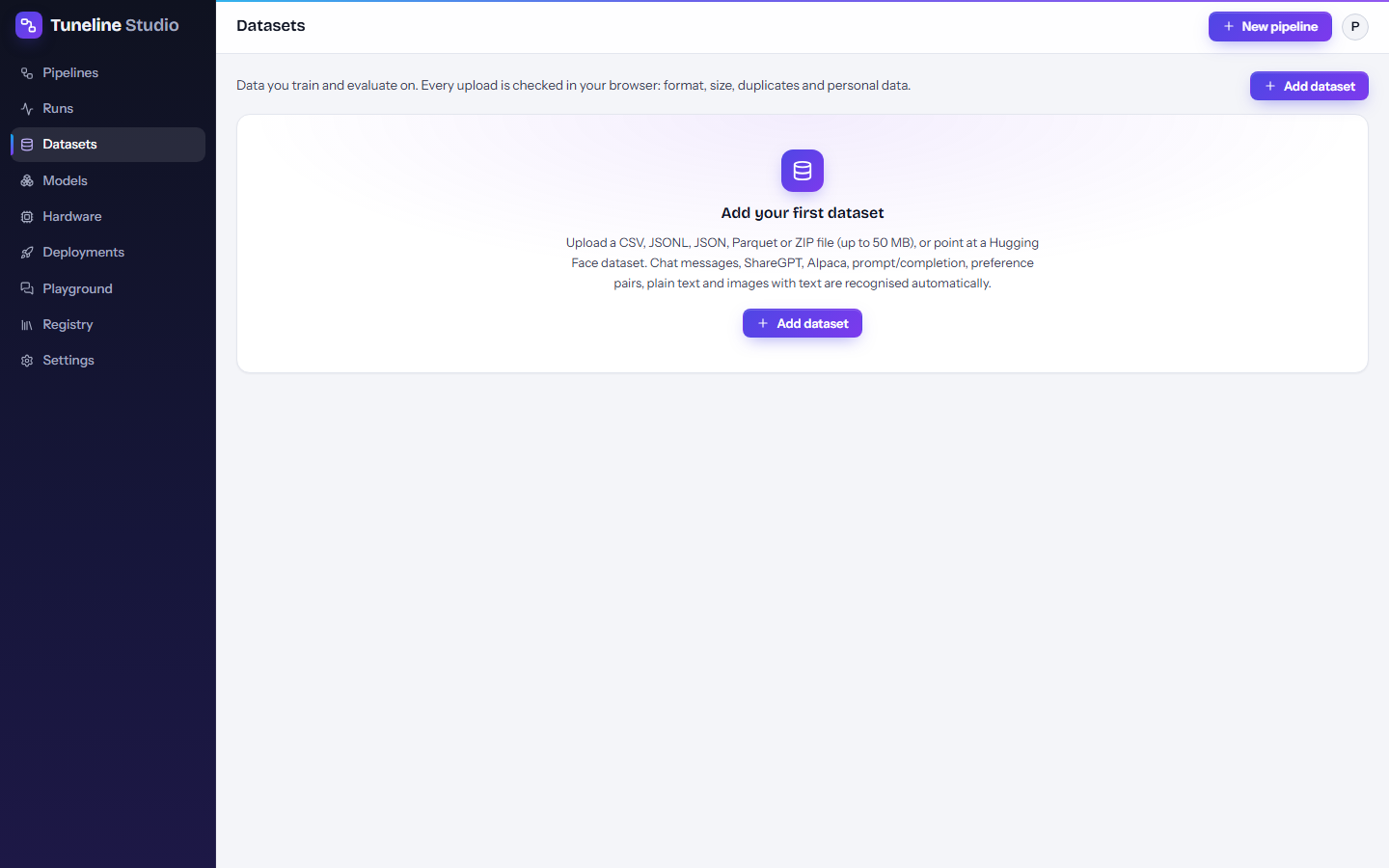
The Datasets page
Each row shows the dataset Name, its Latest version (for example v2 of 3), the detected Format, the number of Rows, the Source (Upload, Hugging Face or Web address) and when it was last Updated. Click a name to open the dataset.
Add a dataset
- On the Datasets page, click Add dataset.
- Choose where the data comes from with the tabs Upload a file, Hugging Face or Web address (details below).
- Wait for the checks. The dialog shows the detected format, the statistics and the first rows.
- Check the Dataset name (it is suggested from the file or repository name).
- Click Save dataset. The new dataset opens.
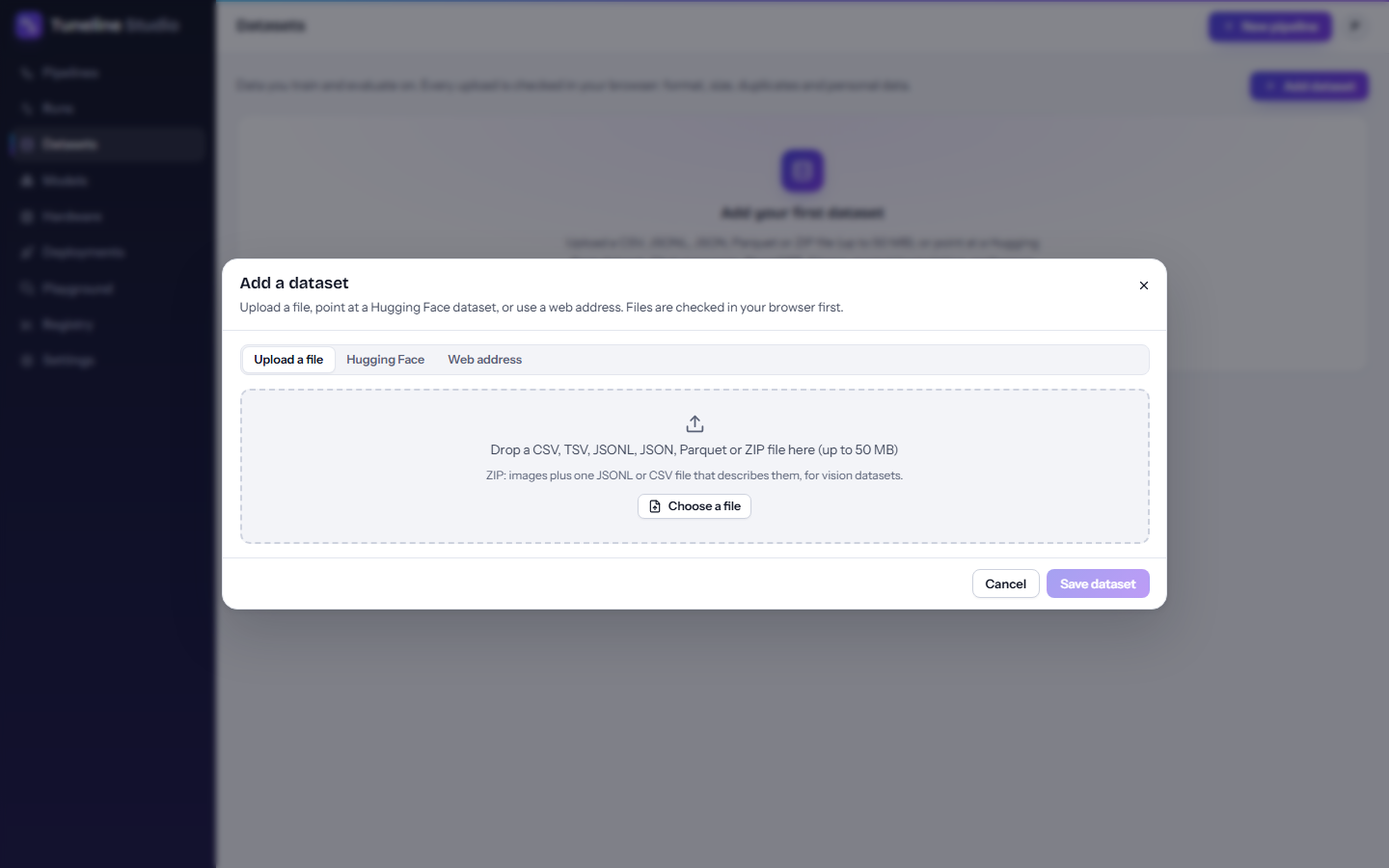
Upload a file
Drop a file on the dialog, or click Choose a file. Supported files:
| File type | Notes |
|---|---|
| CSV, TSV | The first row must be the header with column names. |
JSONL (also .ndjson) |
One JSON object per line. The recommended format for chat data. |
| JSON | An array of objects, or an object holding one (for example under data, rows, examples or train). A .json file that is really JSON lines works too. |
| Parquet | Read in the browser. If the file uses a compression the browser can't read, you can still save it; the pipeline reads it when it runs. |
| ZIP | For vision datasets: images plus one JSONL, CSV, JSON or Parquet file that describes them. |
Uploads can be up to 50 MB. For bigger data, use a Hugging Face dataset or a web address. Uploaded files are stored privately in your account.
Hugging Face
Use a dataset straight from the Hugging Face Hub, without downloading it yourself.
- Enter the Dataset as
owner/name, for exampleHuggingFaceH4/no_robots. - Optionally fill in Config, Split (default
train) and Revision. A revision (a branch, tag or commit) pins the exact data, so later runs read the same rows. - Click Preview. Tuneline Studio loads the first 20 rows. If the dataset has several configs or splits, they appear as buttons under the form (This dataset has: …); click one to preview it instead.
The statistics for a Hub dataset are counted on the previewed rows only; the row count comes from the Hub. If the preview doesn't load, you can still save the dataset: the pipeline reads it from the Hub when it runs.
Web address
Point to a file on the web.
- Enter the File address, starting with
https://. It must be a CSV, JSONL, JSON, Parquet or ZIP file that can be downloaded without signing in. - Click Preview.
Many servers don't let a browser read their files directly. If the preview fails for that reason, you can still save the dataset: the pipeline downloads the file when it runs.
What the checks tell you
Files are checked in your browser before anything is saved. The dialog, and later the dataset page, show:
- Format: the detected format and the step to use next, for example Connect it to 'Format as chat'; ShareGPT is detected automatically. (See Formats.)
- Rows: how many rows the file has.
- Tokens (estimate): the total size in tokens, estimated as characters ÷ 4. The Run dialog uses the rows and the average tokens per row to estimate training time and cost.
- Duplicates and Empty rows.
- Characters per row, Columns, Images (for ZIP files) and Unreadable lines (lines that aren't valid JSON, or CSV rows with the wrong number of columns).
- Possible personal data: counts of email addresses, phone numbers, IBANs, card numbers, IP addresses, US social security numbers and web addresses. When none are found, the dialog says so.
- The columns with their value types, and a table of the first rows.
For large JSONL, JSON and Parquet files, the browser analyses up to the first 200,000 rows; duplicates, empty rows and personal data are then counted on those rows, and the token estimate is scaled up to the whole file. The note under the statistics says when this happened.
Note
Personal-data counts come from pattern matching (with checksums for card numbers and IBANs), so treat them as a hint rather than a guarantee.
The browser also computes a SHA-256 checksum of the file. Runs record which file they used, and the runner checks downloads against it.
Versions
A dataset is a named collection of versions. A version is one file, one Hugging Face split or one web address. Add a new version whenever the data changes; runs record which version they used, so older results stay reproducible.
On a dataset's page you can:
- see every version in the list on the left, with its source and when it was added;
- open a version to see its source, checks and first rows, and Download an uploaded file;
- add a version with New version (the same dialog as Add dataset; the button becomes Save new version);
- edit the Description;
- Delete dataset, which removes every version and its uploaded files. Pipelines that load it will then need another dataset.
Use a dataset in a pipeline
Datasets enter a pipeline through the Load dataset step. There are two ways to connect them.
From the dataset page:
- Open the dataset and select the version you want.
- Click Use in pipeline.
- Either pick a Pipeline and click Use in this pipeline (its first Load dataset step switches to this version; the other steps stay as they are), or click Start a new pipeline to create one that starts with this dataset.
From the editor:
- Add or select a Load dataset step.
- Set Source:
- Uploaded file, then pick the Dataset version from the list (each entry shows the name, version, file and row count);
- Hugging Face dataset, then enter Dataset repository, and optionally Config / subset, Split and (under Advanced) Revision;
- URL (CSV, JSONL, JSON, Parquet or ZIP), then enter File URL;
- Golden set, then pick one of your golden sets.
- Under Advanced you can force the File format, limit Max rows (0 = all) and shuffle before taking the first rows.
The output of Load dataset is a plain Dataset. Training steps need a formatted type, so connect it to Format as chat, Format as preference pairs or Format as vision chat first. The editor tells you which one when you try to connect it directly.
Formats
Tuneline Studio detects these formats automatically. Each example below shows two rows of a JSONL file.
Chat messages (OpenAI format)
A messages column with a list of role / content messages. This is the most flexible format and works with every chat model.
{"messages": [{"role": "system", "content": "You triage sanctions alerts."}, {"role": "user", "content": "Alert: name match 92% ..."}, {"role": "assistant", "content": "Decision: ESCALATE"}]}
{"messages": [{"role": "user", "content": "What is an IBAN?"}, {"role": "assistant", "content": "An International Bank Account Number ..."}]}
Next step: Format as chat (leave Input format on Detect automatically, or choose OpenAI messages).
ShareGPT conversations
A conversations (or messages) column with from / value turns.
{"conversations": [{"from": "human", "value": "Summarise this email ..."}, {"from": "gpt", "value": "The sender asks ..."}]}
{"conversations": [{"from": "human", "value": "Translate to French: good morning"}, {"from": "gpt", "value": "Bonjour"}]}
Next step: Format as chat; ShareGPT is detected automatically.
Alpaca (instruction / output)
instruction and output columns, with an optional input.
{"instruction": "Classify the sentiment.", "input": "The delivery was late again.", "output": "negative"}
{"instruction": "Give a synonym for 'quick'.", "input": "", "output": "fast"}
Next step: Format as chat; Alpaca is detected automatically.
Prompt and completion
prompt and completion columns.
{"prompt": "Customer: Where is my parcel?", "completion": "I'm sorry for the wait. Could you share your order number?"}
{"prompt": "Customer: Can I change my address?", "completion": "Yes. Go to Account, then Addresses ..."}
Next step: Format as chat with Prompt and completion columns (set Prompt column and Completion column if yours are named differently). The Reinforcement tuning (GRPO) step also uses this shape, with the reference answer as the completion.
Preference pairs
A prompt with a chosen and a rejected answer, for DPO, ORPO and SimPO:
{"prompt": "Explain overfitting in one sentence.", "chosen": "Overfitting is when a model learns the training data so closely that it fails on new data.", "rejected": "It is when the model is too big."}
{"prompt": "Is it safe to share my password with support?", "chosen": "No. Support will never ask for your password.", "rejected": "Yes, if they ask nicely."}
Or, for KTO, a prompt, a completion and a true/false label (true = good answer):
{"prompt": "Explain overfitting in one sentence.", "completion": "Overfitting is when a model memorises its training data.", "label": true}
{"prompt": "Explain overfitting in one sentence.", "completion": "It means the GPU is too hot.", "label": false}
Next step: Format as preference pairs (prompt / chosen / rejected or prompt / completion / label (KTO)).
Plain text
A single text column, for continued pretraining on your own documents.
{"text": "Section 4.2. Enhanced due diligence applies when ..."}
{"text": "Glossary. Beneficial owner: the natural person who ..."}
Next step: Format as chat with input format Plain text (continued pretraining).
Images with text (vision)
Upload a ZIP with the images and one JSONL (or CSV) file that names them. The simplest layout uses an image column plus question and answer columns:
{"image": "receipt_001.jpg", "question": "What is the total amount?", "answer": "EUR 42.10"}
{"image": "receipt_002.jpg", "question": "What is the total amount?", "answer": "EUR 7.95"}
The image column can also hold an http(s) URL, or, for a Hub dataset, an image feature. Chat rows whose messages contain image parts ({"type": "image"}) are recognised as vision data too.
Next step: Format as vision chat. With the layout above choose Image column + templates; the default templates {question} and {answer} match these column names.
Any other table
If your data has its own columns (for example alert_text, customer, decision), the format shows as Table (build prompts from columns). Use Format as chat with Input format Build from columns with templates, and write the messages as templates over your columns:
- User message template:
Alert: {alert_text}\nCustomer: {customer} - Assistant message template:
Decision: {decision}
Tips
- Clean before you train. Add a Clean and dedupe step after Load dataset. It drops empty rows (Drop empty rows), removes exact duplicates (Remove duplicates, optionally comparing only some columns with Compare columns), filters rows by length (Min characters per row, Max characters per row) and, with Redact personal data turned on, replaces emails, phone numbers, IBANs, card numbers and IP addresses (and optionally US social security numbers and web addresses) before the data reaches the model.
- Map your columns in Format as chat. If your columns aren't called
messages,promptorcompletion, choose the matching Input format and set the column names, or build messages from templates. A System prompt is added to every example that has none. Use Keep extra columns to carry a column such as a label through to evaluation. - Keep a test set. Add a Train / validation / test split step so evaluation uses rows the model never saw during training. Stratify by column keeps label proportions the same in each part.
- Pin Hub data. Set a Revision on Hugging Face datasets you rely on, so a later change on the Hub doesn't silently change your runs.
- Add a version instead of a new dataset when the data changes, so runs stay comparable.
Related pages
- Core concepts
- The pipeline editor
- Hardware and costs (how dataset size affects time and cost)
- Block reference