Hardware and costs
Before you spend money on a GPU, Tuneline Studio estimates how much GPU memory a fine-tune needs, which GPUs fit, how long it takes and what it costs on each provider: on the Hardware page and again in the Run dialog.
Note
Every number on this page is an estimate. Real memory use and run times vary with the model architecture, your data and the provider. Prices change; the figures quoted below were checked at the time of writing, and the Hardware page shows current ones.
The Hardware page
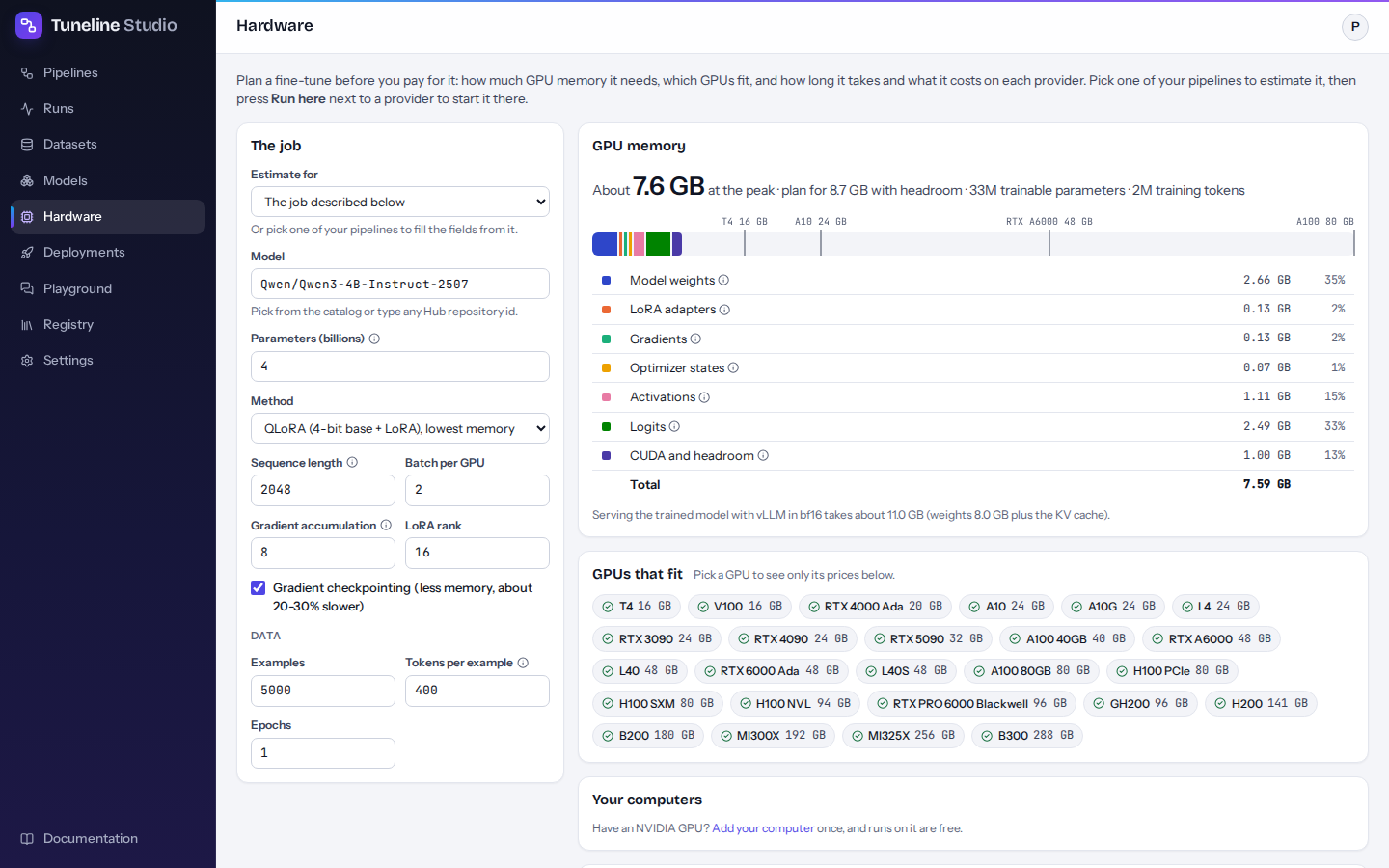
Open Hardware in the sidebar. Describe the job on the left, or pick one of your pipelines; the estimate on the right updates as you type. Then press Run here next to the option you want: the pipeline's Run dialog opens with that provider and GPU picked.
Describe the job
| Field | What to enter |
|---|---|
| Estimate for | The job described below, or one of your pipelines. A pipeline fills the fields from its training step (model, method, sequence length, batch, accumulation, rank, checkpointing, epochs) and from the size of its training data when Tuneline knows it. Changing a field afterwards doesn't change the pipeline. |
| Model | A model from the catalog (start typing to see suggestions) or any Hugging Face repository id. |
| Parameters (billions) | Filled in from the catalog. For a model outside it, leave it empty to read the size from the model's configuration on Hugging Face, or type it, for example 7 for a 7B model. |
| Method | QLoRA (4-bit base + LoRA), lowest memory, LoRA (16-bit base + LoRA) or Full fine-tune (every weight). |
| Sequence length | Tokens per example after truncation. Memory for activations and logits grows with it. |
| Batch per GPU | Examples processed at once on each GPU. |
| Gradient accumulation | Effective batch = batch × accumulation. It adds time, not memory. |
| LoRA rank | Size of the adapter (QLoRA and LoRA only). |
| Gradient checkpointing | Less memory, about 20–30% slower. On by default. |
| Examples, Tokens per example, Epochs | The size of your training data, used for time and cost. The Datasets page shows a token estimate for your data. |
The page opens with Qwen3-4B-Instruct-2507, QLoRA, sequence length 2,048, batch 2, accumulation 8, rank 16, and 5,000 examples of 400 tokens for one epoch. The Explore … on the Hardware page link in a model's details opens the page with that model filled in, and How this is estimated in the Run dialog opens it with that pipeline picked.
GPU memory
The headline shows the peak memory, for example About 7.6 GB at the peak · plan for 8.7 GB with headroom, followed by the number of trainable parameters, training tokens and optimizer steps, and a rough time on a mid-range GPU.
Under it, a bar and a table break the total into parts. Reference marks on the bar show common GPU sizes (16, 24, 48 and 80 GB).
| Part | What it is |
|---|---|
| Model weights | The base model: 2 bytes per parameter in bf16, about 0.52 bytes per parameter with 4-bit QLoRA. |
| LoRA adapters | The small matrices you train (rank × layer sizes). |
| Gradients | One gradient per trainable parameter. Small with LoRA, as large as the model for full fine-tuning. |
| Optimizer states | AdamW keeps two extra numbers per trainable parameter (8-bit optimizers shrink this). |
| Activations | Intermediate results kept for the backward pass; grows with sequence length × batch. Gradient checkpointing cuts it. |
| Logits | Scores over the vocabulary for every token; often the peak for models with large vocabularies. |
| CUDA and headroom | About 1 GB for the CUDA context and memory allocator. |
The recommended size ("with headroom") adds 15% on top of the peak. A GPU fits when its memory is at least the recommended size, so there is room for fragmentation and spikes.
The page also estimates the memory needed to serve the trained model with vLLM in bf16 (weights plus the KV cache), and lists warnings, for example when the model's dimensions were guessed from its parameter count, or when full fine-tuning a model above about 8B parameters.
GPUs that fit
A list of GPUs from the hardware catalog, each marked as fitting or too small. When a model only fits by splitting it across several GPUs, the chip shows how many (for example ×2). Click a GPU to see only its offers in Where to run it; click it again, or the Only … chip above the table, to see every GPU.
Your computers
Each computer you added under Settings → Your computers, with the GPU it reported, whether it is online, and whether the job fits (Fits · free or Too small). Run here opens a pipeline's Run dialog with My computer and that computer picked. Without a computer, the section links to Settings to add one.
Where to run it
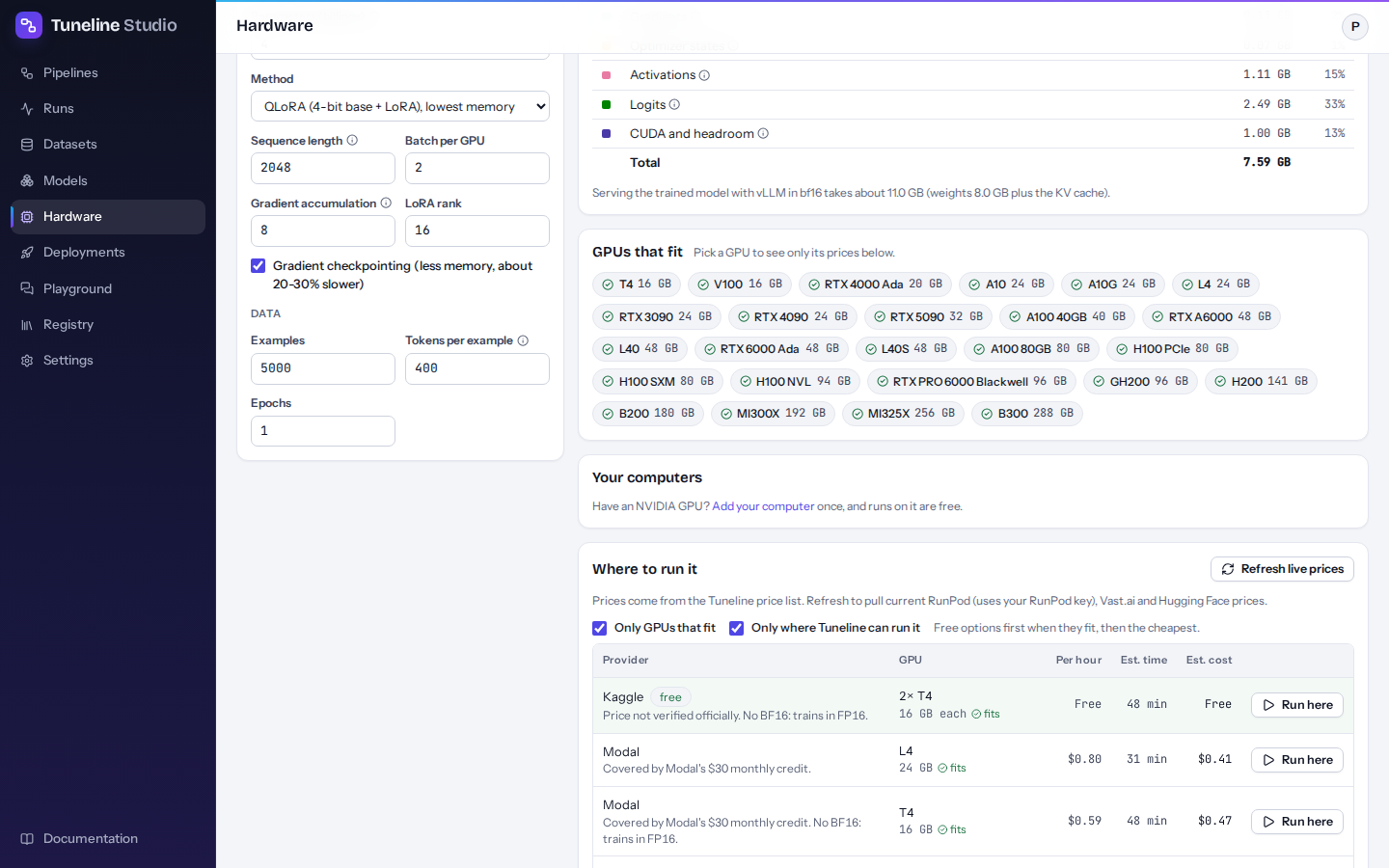
A table of provider and GPU combinations, each with Run here:
| Column | Meaning |
|---|---|
| Provider | Where it runs. A free chip marks free options. |
| GPU | Which GPU and how many, its memory, and whether the job fits on it. |
| Per hour | Price per GPU-hour. |
| Est. time | Estimated training time on that GPU. |
| Est. cost | Estimated time × price per hour. |
The table shows the best 8 options first: free options when they fit, then the cheapest. Show all … options lists the rest. Click a column header to sort by it; Sort free and cheapest first restores the default order.
Each row has Run here. With a pipeline picked in Estimate for, it opens that pipeline's Run dialog with the provider, GPU (and RunPod cloud or Hugging Face hardware) already picked; otherwise it first asks Which pipeline?. Check the details in the Run dialog and press Start run.
Two filters sit above the table, both on by default: Only GPUs that fit, and Only where Tuneline can run it. Untick the second to compare providers Tuneline can't start, such as Vast.ai, AWS or Lambda; their rows link to the provider's Pricing page instead. To use one of them, rent the machine yourself and add it as one of your computers.
Prices come from the Tuneline price list. Click Refresh live prices to pull current prices from RunPod (this uses your RunPod key), Vast.ai (public marketplace offers) and Hugging Face (Jobs hardware prices). A line under the button reports how many prices each source returned, or why it failed.
How the estimate works
Open this section on the page to see the assumptions behind the current estimate and what each memory part means. Further down, open Providers: free options, billing and API keys for a table of Free options (where, which GPU, the limits, and whether Tuneline can start it or you use the Notebook option) and a card per provider with its free tier, billing, how to get a key and links (Get a key, Pricing and docs, Save a key).
How time and cost are estimated
The time estimate is deliberately simple, so you can reason about it:
- Count the work. Training tokens = examples × tokens per example (capped at the sequence length) × epochs. The compute needed is about 6 × parameters × tokens for full fine-tuning and about 4 × parameters × tokens for LoRA; QLoRA adds 30% for unpacking the 4-bit weights. For mixture-of-experts models, only the active parameters count.
- Assume a realistic GPU speed. A GPU never runs at its advertised peak during fine-tuning. The estimate assumes it delivers 35% of its peak bf16 throughput (fp16 on T4 and V100). This figure is called model FLOPs utilisation (MFU), and 35% is typical for the Hugging Face training stack Tuneline uses.
- Add the extras. Gradient checkpointing adds about 25% (activations are recomputed). Several GPUs that each hold a full copy of the model are assumed to work at 90% efficiency; a model split across GPUs runs no faster than on one GPU.
- Add start-up time. A fixed 10 minutes is added for starting the machine, installing packages and downloading the model.
Evaluation, merging and GGUF export are not included in the time. The cost is the estimated time × the hourly price, without storage or idle time. Real runs typically differ from the estimate by 20–50%, depending on the model architecture, packing and data loading.
Tip
For short jobs, the 10 minutes of start-up dominate, so a faster GPU barely changes the total. Pick the cheapest GPU that fits.
The estimate in the Run dialog
When you click Run in the pipeline editor, the Hardware section of the Run dialog estimates the pipeline you are about to run.
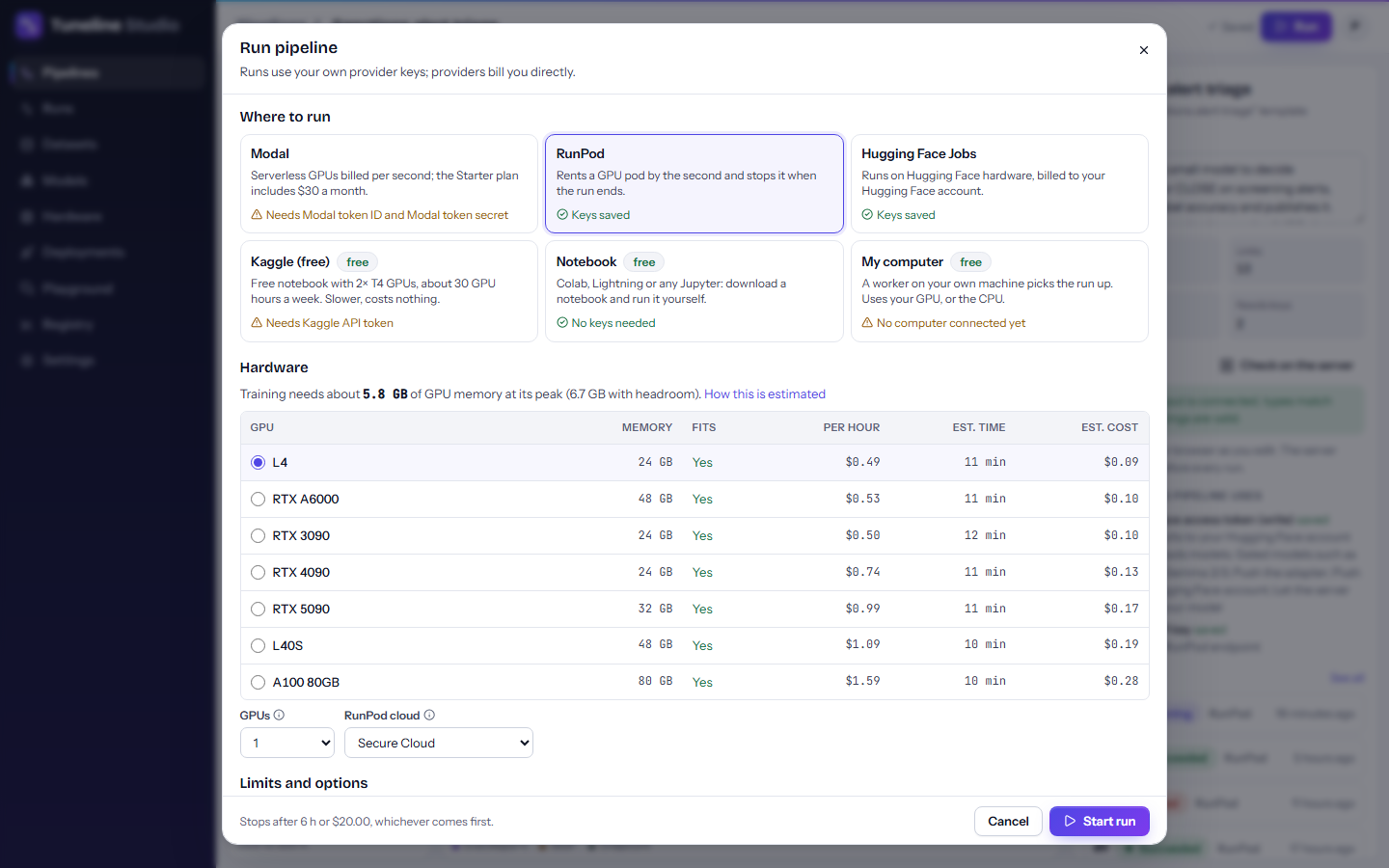
- It reads the settings of the training step that needs the most memory (model, method, sequence length, batch and so on) from your pipeline.
- It uses the size of your training data from the checks saved with your dataset (rows and tokens per row), minus the share held back by a split step. When Tuneline doesn't know the size, it still shows memory but not time and cost.
- It says, for example: Training needs about 5.8 GB of GPU memory at its peak (6.7 GB with headroom) and roughly … of GPU time. How this is estimated.
- For Modal, RunPod and Hugging Face Jobs it shows a table of that provider's GPUs with Memory, Fits, Per hour, Est. time and Est. cost, and preselects the best GPU that fits. Change it if you like.
- For Kaggle, the GPU is fixed (2× T4, 16 GB each), and the dialog says whether that fits.
- For Notebook and My computer, the run uses whatever GPU the machine has.
- For Modal, RunPod and Hugging Face Jobs, up to three warnings from the estimator appear under the headline.
A pipeline with no GPU steps says so and runs on CPU wherever you send it.
Example numbers
Checked with the live estimator in September 2026, for the Sanctions alert triage template (sequence length 1,024, two epochs, the template's sample data):
| Base model | Method | Peak GPU memory |
|---|---|---|
| Qwen2.5-1.5B-Instruct | QLoRA | about 3.8 GB |
| Qwen2.5-1.5B-Instruct | LoRA | about 5.8 GB |
| Qwen3-4B-Instruct-2507 (the template's default) | QLoRA | about 5.8 GB (6.7 GB with headroom) |
All of these fit on a 16 GB T4 (so on Kaggle for free) or a 24 GB L4. On Hugging Face Jobs, an L4 cost about $0.80 an hour at the time of writing, which put a run of this template at about $0.15.
Reduce memory, time or cost
If a job doesn't fit, or costs more than you want:
- Switch to QLoRA. It needs the least memory of the three methods.
- Shorten the maximum sequence length. Activations and logits grow with it. Check the token estimate of your dataset first, so you don't cut off real examples.
- Lower the batch size and raise gradient accumulation. The effective batch stays the same, and memory drops.
- Keep gradient checkpointing on. It trades about a quarter more time for much less memory.
- Pick a smaller model. A well-tuned small model often beats a poorly tuned large one on a narrow task. See Choosing a base model.
- Try free options first. Kaggle's free T4s and the Notebook target (Colab and others) cost nothing; Modal's Starter plan includes $30 of compute a month.
- Use the limits in the Run dialog. Stop after (hours) and Stop at cost (USD) stop a run before it gets expensive.