API keys and security
Add the provider keys your pipelines need, understand how Tuneline Studio stores and uses them, and keep your models and data private.
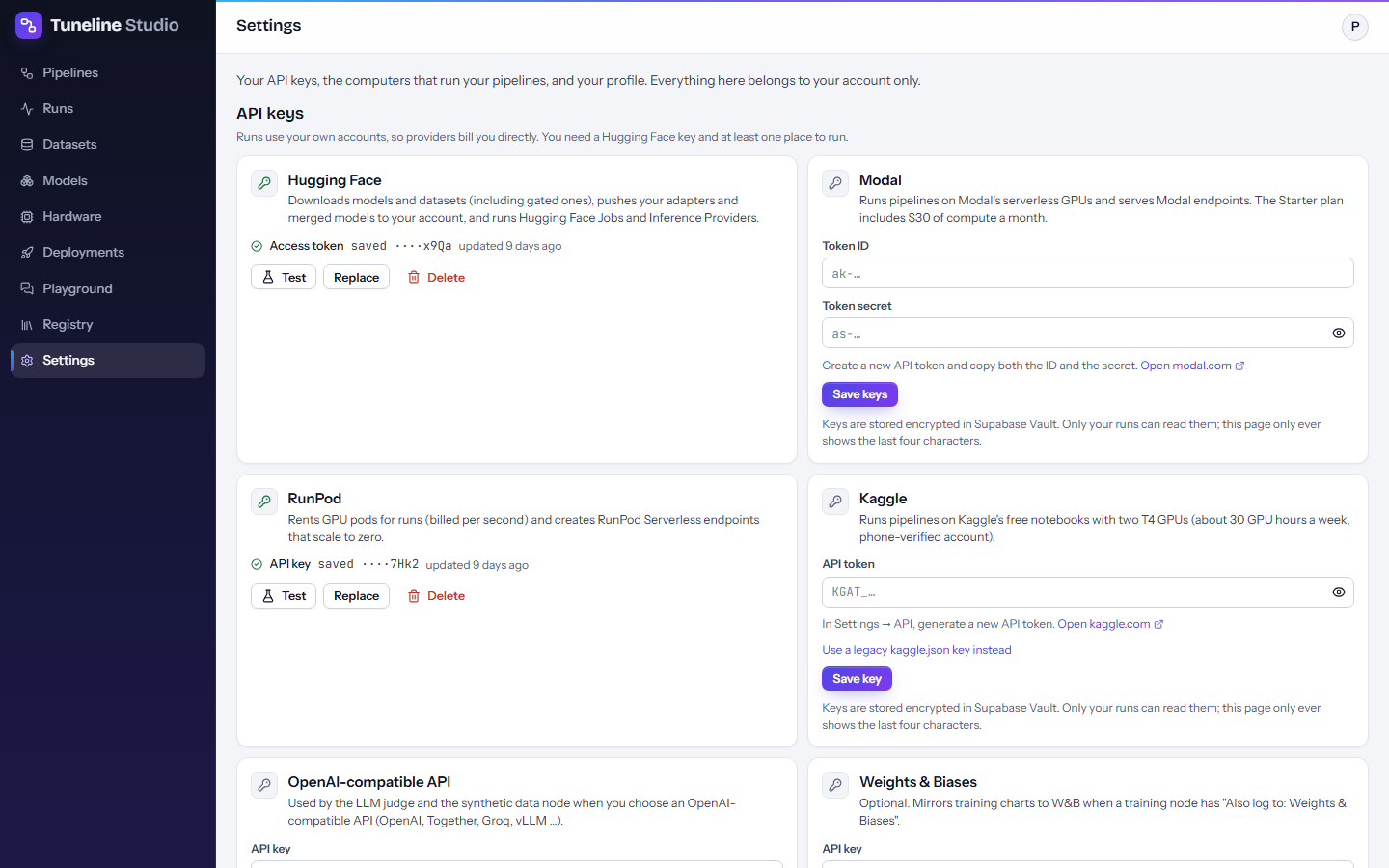
Tuneline Studio runs everything with your own accounts: GPU time is billed by the provider to you, and models are pushed to your Hugging Face account. To do that, it needs an API key for each service you use. You manage them in Settings → API keys.
Which keys you need
You need a Hugging Face key for almost every pipeline, plus a key for at least one place to run (or none, if you run in a notebook or on your own computer).
| Key | Used for | Needed when |
|---|---|---|
| Hugging Face access token | Downloads models and datasets (including gated ones), pushes your adapters, merged models and GGUF files to your account, stores the step cache, runs Hugging Face Jobs, chats with Hub models through Inference Providers, and creates Hugging Face Inference Endpoints. Every endpoint also uses it to download your model. | Almost always. |
| Modal Token ID and Token secret | Runs pipelines on Modal's serverless GPUs and serves Modal endpoints. The Starter plan includes $30 of compute a month. | You run on Modal or deploy to Modal. |
| RunPod API key | Rents GPU pods for runs (billed per second) and creates RunPod Serverless endpoints that scale to zero. | You run on RunPod or deploy to RunPod. |
| Kaggle API token | Runs pipelines on Kaggle's free notebooks with two T4 GPUs (about 30 GPU hours a week). | You run on Kaggle. |
| OpenAI-compatible API key and base URL | The LLM judge in Evaluate on test set and Generate synthetic data, when you choose an OpenAI-compatible API (OpenAI, Together, Groq, vLLM and others). | Only for those two options. |
| Weights & Biases API key | Mirrors training charts to W&B when a training block has Also log to set to Weights & Biases. | Optional. |
The editor tells you which keys a pipeline needs: with nothing selected, the inspector lists API keys this pipeline uses and whether each is saved. The Run dialog lists the keys missing for the place you picked, for example "This pipeline needs RunPod API key (deploy: Create the RunPod endpoint). Add it in Settings."
Create and save each key
Each card on the Settings page says what the key is for and links to the page where you create it.
- Create the key at the provider (see the table below).
- Paste it into the card and press Save key (or Save keys for cards with two fields).
- Press Test to check it with the provider.
| Card | Where to create it | What to create |
|---|---|---|
| Hugging Face | huggingface.co/settings/tokens | A token with the Write role (starts with hf_). A read-only token can download but cannot push your models. |
| Modal | modal.com/settings/tokens | A new API token. Copy both the Token ID (ak-...) and the Token secret (as-...). |
| RunPod | runpod.io/console/user/settings | Under API Keys, a key with read and write access (rpa_...). |
| Kaggle | kaggle.com/settings | In Settings → API, generate a new API token (KGAT_...). Or press Use a legacy kaggle.json key instead and enter the username and key from a kaggle.json file. Kaggle only gives GPUs and internet access to phone-verified accounts: verify your phone number in the same settings page. |
| OpenAI-compatible API | Your provider, for example platform.openai.com/api-keys | An API key (sk-...) and the provider's Base URL, for example https://api.openai.com/v1. Any provider with an OpenAI-compatible /v1 endpoint works. |
| Weights & Biases | wandb.ai/authorize | Copy the API key shown there. |
For gated models such as Llama and Gemma, also accept the model's license on its Hugging Face page, with the same account that owns your token.
Test a key
Test asks the provider whether the key works and shows the answer on the card. For Hugging Face it also shows the account name and the token's access level, for example "Signed in to Hugging Face as your-name (write access)", and fills in Hugging Face username in your profile: your models are pushed under that account. If the token can only read, you see a warning: "This token can only read: runs cannot push adapters or models to your account. Create a token with write access."
Replace or delete a key
- Replace lets you paste a new value; the old one is overwritten.
- Delete removes the key after you confirm with Delete key. Runs and endpoints that need it stop working until you add it again.
How keys are stored
- Keys are saved encrypted in Supabase Vault, one entry per key and person.
- The web page never gets your keys back. It only shows the last four characters, for example
saved ····x9Qa, and when the key was last updated. - Only two parties can read a key: Tuneline's server, to start jobs, test keys and manage endpoints for you; and a running job of yours, which receives only the keys its pipeline needs.
- Keys are never written to logs. The server removes secret values from its logs, and the runner hides key-like strings in run logs.
Note
Whoever operates a Tuneline Studio installation (the owner of its Supabase project) can technically read Vault. On an installation run by someone else, prefer keys with the narrowest permissions your providers offer, for example a fine-grained Hugging Face token limited to your own repositories.
Tokens Tuneline creates for you
Besides your provider keys, Tuneline Studio creates two kinds of tokens. Both are random, stored only as a hash, and shown in full only when created.
| Token | Looks like | What it allows | How long it works |
|---|---|---|---|
| Worker token | tlw_... |
Lets one of your computers pick up your My computer runs. It is inside the setup file and the install command from Settings → Your computers. | Until you remove that computer in Settings → Your computers. |
| Run token | tlr_... |
Lets a job run one run: read that run's settings and the keys its pipeline needs, and report logs, metrics and results. It is inside each notebook and start command. | For that one run only. It expires 2 hours after the run ends, and in any case 14 days after it was created (a run that waits longer than that has to be retried). |
Endpoints on Modal also get their own key (tlv_...), shown on the Deployments page. See Deployments.
Warning
Treat the setup file, install command, notebooks and run commands like passwords: don't share them or commit them to a repository. Delete the Windows setup file after setup.
Privacy of your data and models
- Your account is private. Every table has row-level security: you only see your own pipelines, runs, datasets, keys, models and golden sets. There is no sharing between accounts inside the studio.
- Uploaded datasets are stored in a private bucket, in a folder only your account can use. Jobs download them through signed links that expire after 7 days.
- Models go to your Hugging Face account, as private repositories by default. Private repository is on by default in every block that pushes to Hugging Face (training, Merge adapter, Export GGUF, Publish and register). Untick it only if you want the repository to be public.
- The step cache (outputs reused by later runs) is kept in a private dataset repository in your Hugging Face account,
<your-username>/tuneline-cache. - Run logs are deleted after 60 days by default (the operator of the installation can change this).
- Providers see what they process. A run on Kaggle, Modal, RunPod or Hugging Face Jobs runs your data and model on that provider's machines, and the LLM judge and synthetic data send examples to the API you choose. Pick providers whose terms fit your data, or run on your own computer.
Good practices
- Use a dedicated key for Tuneline at each provider, so you can revoke it without affecting anything else.
- Give keys the least access that works: a Hugging Face token scoped to your own repositories with write access; no admin rights anywhere.
- Set cost limits. Keep Stop at cost (USD) in the Run dialog, check the estimate before running, and use spending limits or prepaid credit where your provider offers them.
- Delete idle endpoints. Endpoints with always-on workers bill continuously. See Deployments.
- Redact personal data before training: turn on Redact personal data in Clean and dedupe (emails, phone numbers, IBANs, card numbers and more).
- Only connect computers you control. A worker runs pipeline code on that machine with your saved keys.
- If a key leaks, delete it in Settings → API keys and revoke it in the provider's console. If a worker token leaks, remove that computer in Settings → Your computers and add it again.