Playground
Chat with your endpoints or any Hugging Face model, compare two models side by side, and save good answers as test examples in golden sets.
The Playground page has two tabs: Chat and Golden sets.
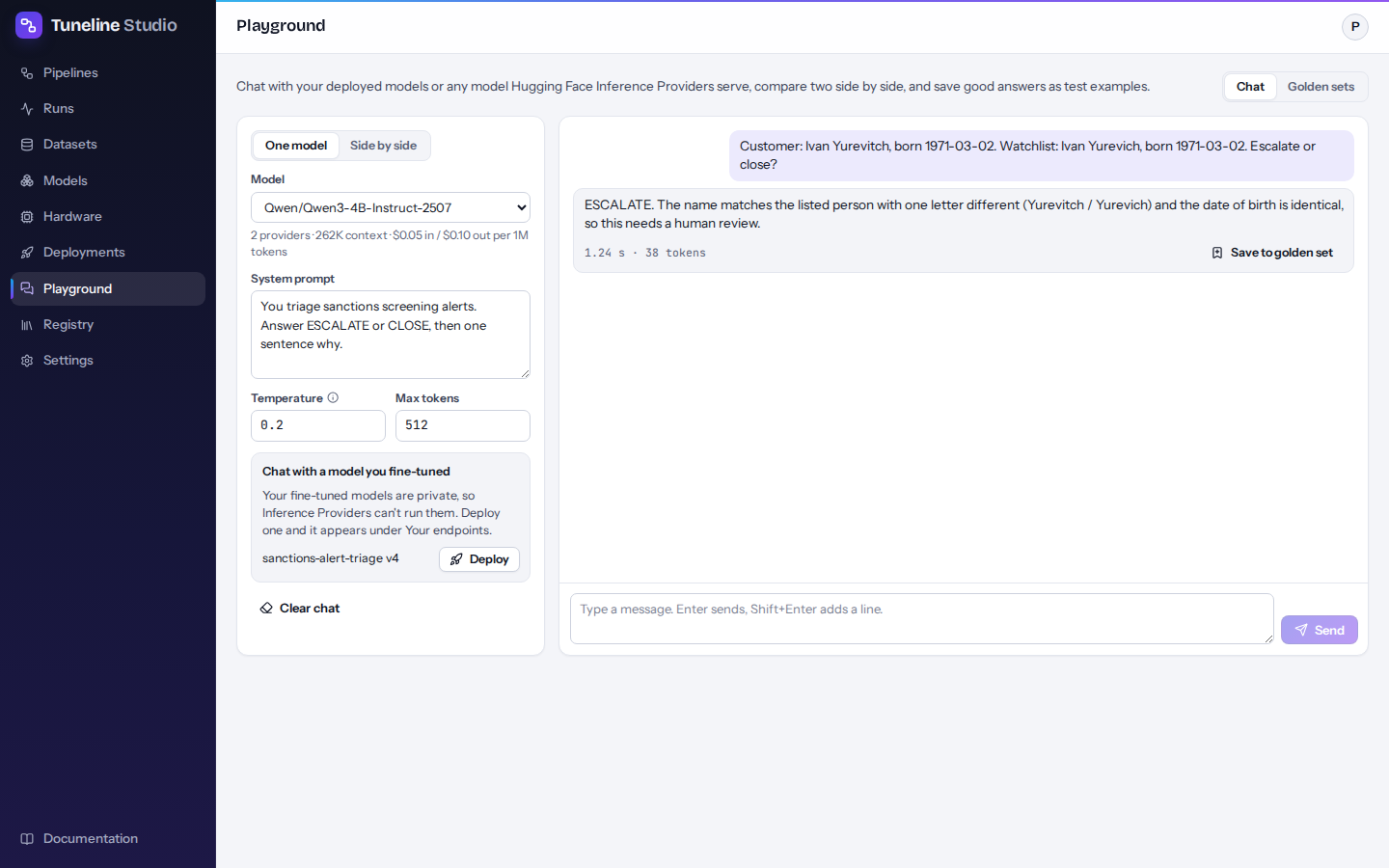
Chat with a model
- Choose One model or Side by side at the top of the settings panel.
- Pick the model in Model (or Model A and Model B).
- Optionally write a System prompt and adjust Temperature and Max tokens.
- Type a message and press Send (or Enter; Shift+Enter adds a new line).
The conversation continues with each reply, like any chat. Clear chat starts over. Switching between One model and Side by side also clears the chat.
Which models you can pick
The Model list has these groups:
- Your endpoints: your deployments on the Deployments page, shown as "name · provider", with a note when one is starting, asleep (scaled to zero: the first answer wakes it), stopped or failed. A stopped, paused or failed endpoint can't answer: resume it first. You can also open the Playground with an endpoint already picked, from Try it on the Deployments page or Open in playground on a run's Artifacts tab.
- Popular on Hugging Face and All models on Hugging Face Inference Providers (A–Z): every chat model that Hugging Face Inference Providers serve right now (the list is refreshed every few minutes). Under the list you see how many providers serve the picked model, its context length and the cheapest price per million tokens. These models use your Hugging Face token, and Hugging Face bills the usage to your account.
- Type a Hugging Face model id…: any other model, as
owner/name, for exampleQwen/Qwen3-8B.
When the page opens, Model is set for you: your first live endpoint if you have one, otherwise a popular Hub model
(Qwen/Qwen3-4B-Instruct-2507 when it is served). In Side by side, Model B starts on a different model, so you
can compare straight away.
If you haven't saved a Hugging Face token, the panel says so and links to Settings; Hub models can't answer without it.
Note
Your fine-tuned models are private, so Inference Providers can't run them. The panel lists your latest registered models that have no endpoint yet under Chat with a model you fine-tuned; Deploy opens the Deployments page with the model filled in. Once the endpoint runs, it appears under Your endpoints.
Settings
| Setting | Default | What it does |
|---|---|---|
| System prompt | empty | Instructions sent before every conversation, for example the same system prompt you trained with. |
| Temperature | 0.2 | 0 gives the most predictable answers; higher values vary more. |
| Max tokens | 512 | The longest answer the model may write. |
Reading the answers
Under each answer you see how long it took, in seconds, and how many tokens it used when the model reports it. The first answer from a scaled-to-zero endpoint can take a minute or more while it wakes up ("Waiting for the answer… a scaled-to-zero endpoint can take a minute to wake up"); later answers are much faster. An answer that stopped at Max tokens says so; a model that thinks before answering can use them all up before it answers, so raise Max tokens and ask again.
If a model can't answer, the reason is shown in red in its place, with what to do: for example a Hugging Face token without the Make calls to Inference Providers permission, a gated model whose license you haven't accepted on its Hugging Face page, or a model no provider serves.
Compare two models
In Side by side mode, each message goes to both Model A and Model B, and their answers appear next to each other. Each model keeps its own conversation history. Typical uses:
- the fine-tuned endpoint against the model it started from, served through Inference Providers;
- two versions of your model deployed as two endpoints;
- two candidate base models before you pick one to fine-tune.
Save answers to a golden set
A golden set is a list of test questions with the answer you expect. Build one while you chat:
- Under a good answer, press Save to golden set.
- In Save to a golden set, pick a set in Golden set, or choose New golden set… and type a name.
- Check Expected answer. It starts as the model's answer; edit it into the answer you want the model to give. This is how you capture corrections too: save a wrong answer and fix it.
- Press Save example.
The example stores the whole conversation up to that question (including the system prompt), the expected answer, and where it came from.
The Golden sets tab
The Golden sets tab lists your sets with the number of examples and when each was created.
- Create an empty set: type a name in New golden set and press Create.
- Open a set to see its examples: each shows the question and the expected answer. Delete an example with its bin button.
- Delete a whole set with its bin button, then Delete set. Pipelines that load it will need another set.
Use golden sets in evaluation
Golden sets are made for evaluating models: the same questions, every time, so scores stay comparable across runs and models. To score a model on one:
- Add a Load dataset block and set Source to Golden set; pick the set.
- Connect it to Format as chat.
- Connect that to the Test data input of Evaluate on test set, together with the model to test.
Add a quality gate after it to stop models that get your golden questions wrong. See Evaluation and quality gates.