Deployments
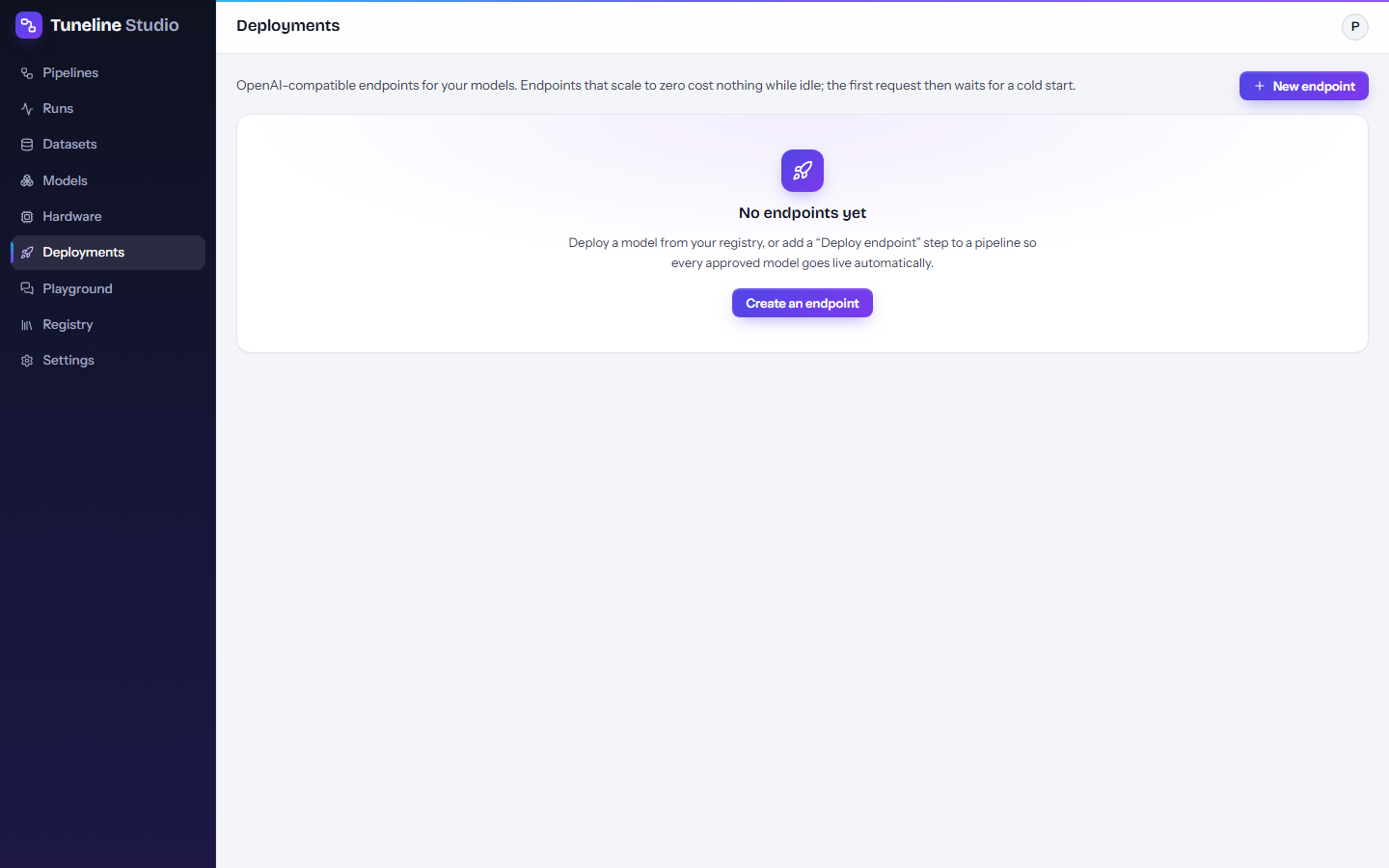
Serve a trained model behind an OpenAI-compatible API on RunPod, Hugging Face or Modal, manage the endpoint, and call it from your code, or run your model for free on your own computer.
A deployment (endpoint) runs your model with vLLM on a GPU at one of three providers, in your own account with your own key. It speaks the OpenAI chat completions API, so any OpenAI client library, and most tools that accept an "OpenAI base URL", can use it.
Where to serve
| Provider | How it scales | Key it needs | Who you pay |
|---|---|---|---|
| RunPod Serverless | Scales to zero; you pay per second of use. | RunPod API key | RunPod |
| Hugging Face Inference Endpoints | Scales to zero after the idle timeout. | Hugging Face token (write) | Hugging Face |
| Modal | A vLLM container that stops by itself after a time limit (2 hours by default). Resume starts a new one. | Modal token ID and token secret | Modal |
All three also use your Hugging Face token, so the server can download your (private) model.
Endpoints are not free
Every endpoint runs on a paid GPU billed to your provider account. Scale-to-zero endpoints cost nothing while idle, but you pay for every second a GPU is up, including start-up. Modal's Starter plan includes $30 of compute a month, which can cover light testing. Check prices on each provider's pricing page; the Hardware page shows current GPU prices. If you only want to try your model, see Use your model for free.
Cold starts
With Always-on workers at 0, no GPU is running while nobody calls the endpoint. The first request after a quiet period waits while a GPU starts and downloads your model: expect about a minute, and several minutes the first time. Later requests are fast until the endpoint has been idle for the idle timeout again. Set Always-on workers to 1 or more to avoid cold starts, at the price of paying for that GPU all the time.
Create an endpoint
You can deploy from the Deployments page, from the registry, from a run, or automatically from a pipeline.
From the Deployments page
- Press New endpoint. (From a registry version or a run's Artifacts tab, press Deploy: the dialog opens with the model filled in.)
- Fill in the dialog (below).
- Press Create endpoint.
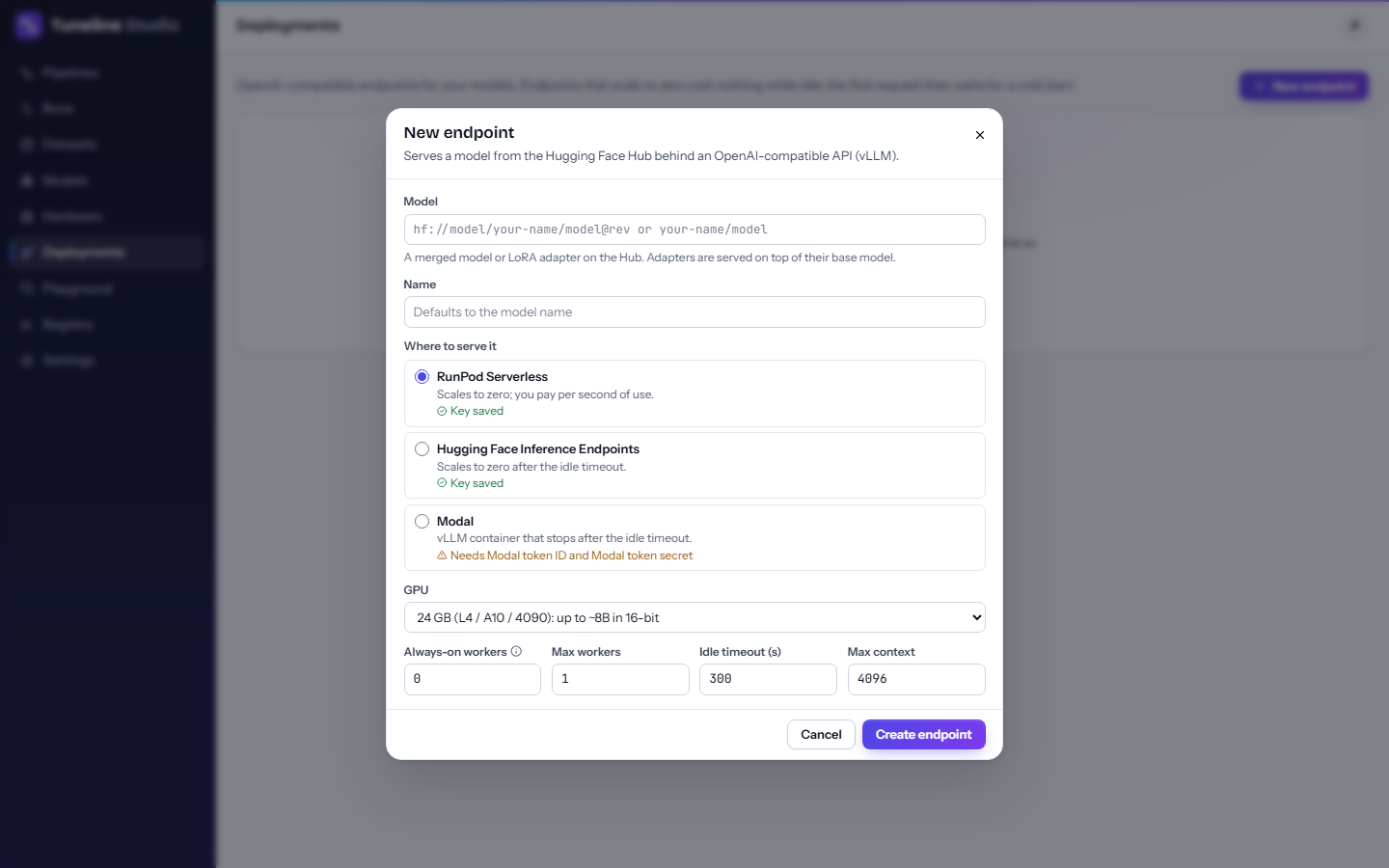
| Field | What to enter |
|---|---|
| Model | A merged model or LoRA adapter on the Hugging Face Hub. Pick one of your registered versions from the list, or type a repository such as your-name/your-model (or hf://model/your-name/your-model@<revision>). Adapters are served on top of their base model; pick the registered version so Tuneline Studio knows the base model. GGUF files cannot be deployed this way. |
| Name | Optional. Defaults to the model name. |
| Where to serve it | RunPod Serverless, Hugging Face Inference Endpoints or Modal. Each option shows Key saved, or which key is missing. |
| GPU | 16 GB (T4 class): models up to about 7B in 4-bit. 24 GB (L4 / A10 / 4090): up to about 8B in 16-bit. 48 GB (L40S / A6000): up to about 20B. 80 GB (A100 / H100): up to about 35B. |
| Always-on workers | RunPod and Hugging Face. Default 0 (scale to zero). Each always-on worker is a GPU you pay for continuously. |
| Max workers | RunPod and Hugging Face. Default 1. More workers serve more requests at once. Must be at least 1 and at least the always-on count. |
| Idle timeout (s) | RunPod and Hugging Face. Default 300. How long an idle endpoint keeps its GPU before scaling down. Hugging Face counts this in whole minutes, with a minimum of 15. |
| Stop after (hours) | Modal only, instead of the three settings above. Default 2, from 0.25 to 24. The container stops at this time limit whether or not it is busy, and you pay for the GPU until then. |
| Max context | Default 4096 tokens: the longest prompt plus answer the endpoint accepts. Longer contexts need more GPU memory. |
The endpoint appears in the list with the status Starting. Creating it takes a few seconds; being ready to answer can take several minutes the first time while the model downloads.
From a pipeline: the Deploy endpoint block
Add Deploy endpoint at the end of a pipeline so every approved model goes live automatically. Connect its Model input to a model that is on the Hub: the output of Publish and register, or a training or merge step whose push setting is on (for example Push the adapter to Hugging Face). Put a quality gate before it so only good models are deployed.
| Setting | Default | Meaning |
|---|---|---|
| Where to serve | RunPod Serverless (scales to zero) | Or Hugging Face Inference Endpoints (scales to zero), or Modal (one vLLM container, stops after a time limit). |
| Endpoint name | {pipeline} |
The pipeline's name is filled in. |
| GPU | 24 GB (L4 / A10 / 4090) | Same sizes as in the dialog. |
| Max context length | 4096 | Tokens. |
| Always-on workers | 0 | RunPod and Hugging Face only. |
| Max workers | 1 | RunPod and Hugging Face only. |
| Scale down after idle (seconds) | 300 | RunPod and Hugging Face only. |
| Stop after (hours) | 2 | Modal only: the time limit for the container. |
The endpoint shows up on the Deployments page with a From a run link, and as an artifact of the run (with Open in playground). Add Endpoint smoke test after it to wait for the cold start and send a few test prompts; it records answers and latency and can check that answers contain a given text.
Note
The Sanctions alert triage template ends with a Deploy endpoint block on RunPod, so running it asks for a RunPod API key. If you don't want an endpoint yet, select the block and press Delete node before you run.
Manage endpoints
Each endpoint in the list shows its name, status, provider, GPU, model (with a link to Hugging Face), when it was created, and its URL with Copy URL.
| Status | Meaning |
|---|---|
| Starting | Being created, or a worker is starting. |
| Running | At least one worker is up and serving. |
| Scaled to zero | Ready but idle: no GPU is running. The next request starts one. |
| Paused / Stopped | Not serving and not costing GPU time. Press Resume to start it again. |
| Failed | Could not start. The reason is shown under the endpoint; check the provider's console for details. |
Buttons:
- Try it opens the Playground with this endpoint.
- curl shows a ready-to-paste example request (see below).
- Stop stops serving. On RunPod it sets the workers to zero; on Hugging Face it pauses the endpoint; on Modal it stops the container.
- Resume starts a stopped endpoint again. On Modal this starts a new container, so the URL and the endpoint key change.
- The refresh button asks the provider for the current status. Tuneline Studio also checks endpoints in the background.
- The bin button deletes the endpoint at the provider, after you confirm with Delete endpoint. It "stops costing money"; the model stays on the Hub. If the server can't reach the provider, you can Remove from list only; then delete it in the provider's console yourself.
Tip
Delete endpoints you no longer use. An endpoint with always-on workers keeps billing until you stop or delete it.
Call your endpoint
You need three things, all on the endpoint's card:
- The base URL, shown on the card (it ends in
/v1). Chat requests go to<base URL>/chat/completions. - The model name, shown in the curl example: the Hub repository, or the adapter's short name when an adapter is served on a base model.
- A key, which depends on the provider:
| Provider | Key to send as Authorization: Bearer ... |
|---|---|
| RunPod Serverless | Your RunPod API key. |
| Hugging Face Inference Endpoints | Your Hugging Face token. |
| Modal | The endpoint's own key (starts with tlv_), created with the endpoint. Press curl on the card, then Copy key. |
Warning
For RunPod and Hugging Face, the key that calls the endpoint is your account key, which can do much more than call this endpoint. Don't put it in a web page, a mobile app or a shared notebook; call the endpoint from your own server instead.
export RUNPOD_API_KEY=rpa_...
curl https://api.runpod.ai/v2/<endpoint-id>/openai/v1/chat/completions \
  -H "Authorization: Bearer $RUNPOD_API_KEY" \
  -H "Content-Type: application/json" \
  -d '{"model": "<model name>", "messages": [{"role": "user", "content": "Hello! What can you do?"}], "max_tokens": 200}'
import os
from openai import OpenAI

client = OpenAI(
    base_url="https://api.runpod.ai/v2/<endpoint-id>/openai/v1",  # the URL on the endpoint's card
    api_key=os.environ["RUNPOD_API_KEY"],  # HF_TOKEN for Hugging Face, the endpoint key for Modal
)
reply = client.chat.completions.create(
    model="<model name>",
    messages=[{"role": "user", "content": "Hello! What can you do?"}],
    max_tokens=200,
)
print(reply.choices[0].message.content)
The curl button on each card gives the exact command for that endpoint, with its URL and model name filled in. When the endpoint is scaled to zero, the first call can take a minute or more; set a generous timeout in your client.
Use your model for free
Endpoints are the easy way to share a model with an application, but you don't need one to use your model. These options cost nothing beyond your own computer:
- Run the adapter locally with Python. The repository includes an example app,
examples/alert-triage/app.py, that loads the adapter published by the Sanctions alert triage pipeline, attaches it to its base model on your computer (a CPU is enough for 0.5B to 4B models) and serves a small web page for triaging alerts. It runs from a copy of the Tuneline Studio repository with PyTorch and Transformers installed: setHF_TOKENto a token that can read your private repository, runpython examples/alert-triage/app.py --adapter your-name/your-repo, and openhttp://127.0.0.1:7860. The model card on Hugging Face (see Registry) also has a How to use section. - Run it in Ollama, LM Studio or llama.cpp. Add Merge adapter and Export GGUF to your pipeline (the Chat assistant (SFT → GGUF → Ollama) template already has them). Export GGUF writes quantized files (for example Q4_K_M and Q8_0) to your Hugging Face account. Then:
- add Ollama package after it: it writes an Ollama
Modelfile, and when the run happens on your own computer with Ollama installed, it also runsollama create, soollama run <name>works straight away (Ollama serves an OpenAI-compatible API athttp://localhost:11434/v1); - or download a
.gguffile from the repository and open it in LM Studio or llama.cpp.
- add Ollama package after it: it writes an Ollama
- Train and run on your own computer. With My computer as the place to run (see Your own computer), training, GGUF export and the Ollama package all happen on your machine.
See also FAQ: How do I use my trained model?.